

Editor blocks
List of all the content blocks available in the page, description and comment editors.
Text
The standard block for paragraph text and general content.
Headings (H1 - H6)
Organize your content hierarchically using six heading levels:
- H1: Main page title (use only once per page)
- H2: Primary sections
- H3: Subsections
- H4-H6: Further content subdivision when needed
To do
Adds checkable items for tracking tasks and their completion status.
Bullet list
Creates unordered lists for items where sequence doesn't matter.
Numbered list
Creates ordered lists when sequence or priority matters.
Table
Organizes information in rows and columns for structured data presentation.
Quote
Highlights quoted text or important statements with distinct formatting.
Code
Displays code snippets or command-line text with proper formatting and syntax highlighting.
Embed Pro
Seamlessly integrate external content directly into your documents with rich, interactive embeds. The embed feature supports a wide variety of platforms and content types, making it easy to enhance your documentation with multimedia and interactive elements.
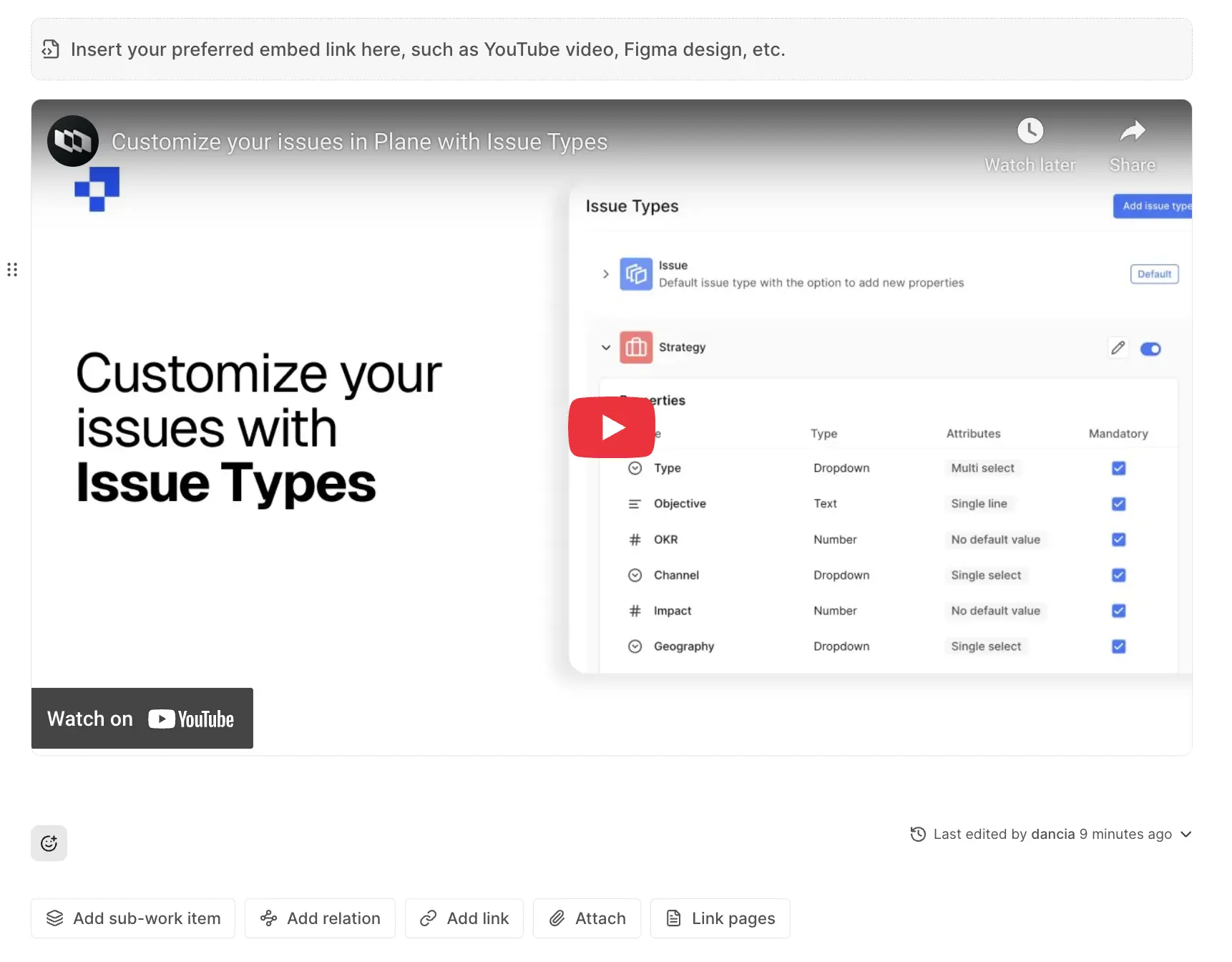
Use the /embed slash command to quickly insert an embed block.
This opens an embed dialog where you can paste any supported link. The system automatically detects the content type and creates an appropriate embed with a rich preview. This eliminates the need for users to navigate away from your content to view referenced materials.
Embed Dashboard widget Enterprise Grid
Embed a live dashboard widget directly in a page. Instead of linking out to a dashboard, you bring a single chart, table, or metric from an existing dashboard into your page. It renders inline and stays in sync with your data.
Type / in the editor and search for Link dashboard widgets to insert a dashboard widget block.
When you insert the block, a selector opens where you choose a dashboard and then pick the specific widget you want to embed. The widget appears inline in your page.
You can change the widget at any time by hovering over the block and clicking Change widget. To remove it, click Delete from the block menu.
TIP
You need at least one dashboard with widgets already set up before you can embed one in a page. See Dashboards to get started.
Image
Inserts and displays images within your content.
Attachment Pro
Uploads and embeds files directly into your content, supporting documents, images, and other file types up to 100MB each.
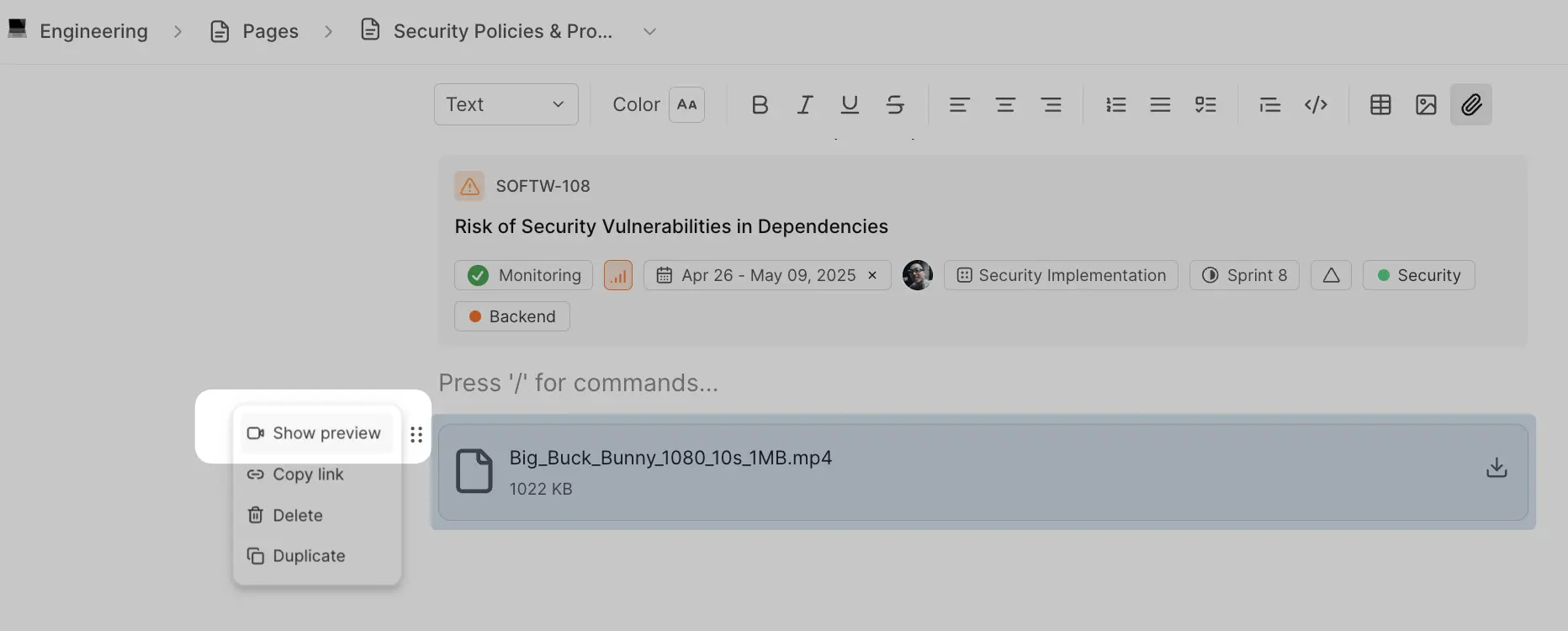
Show video preview
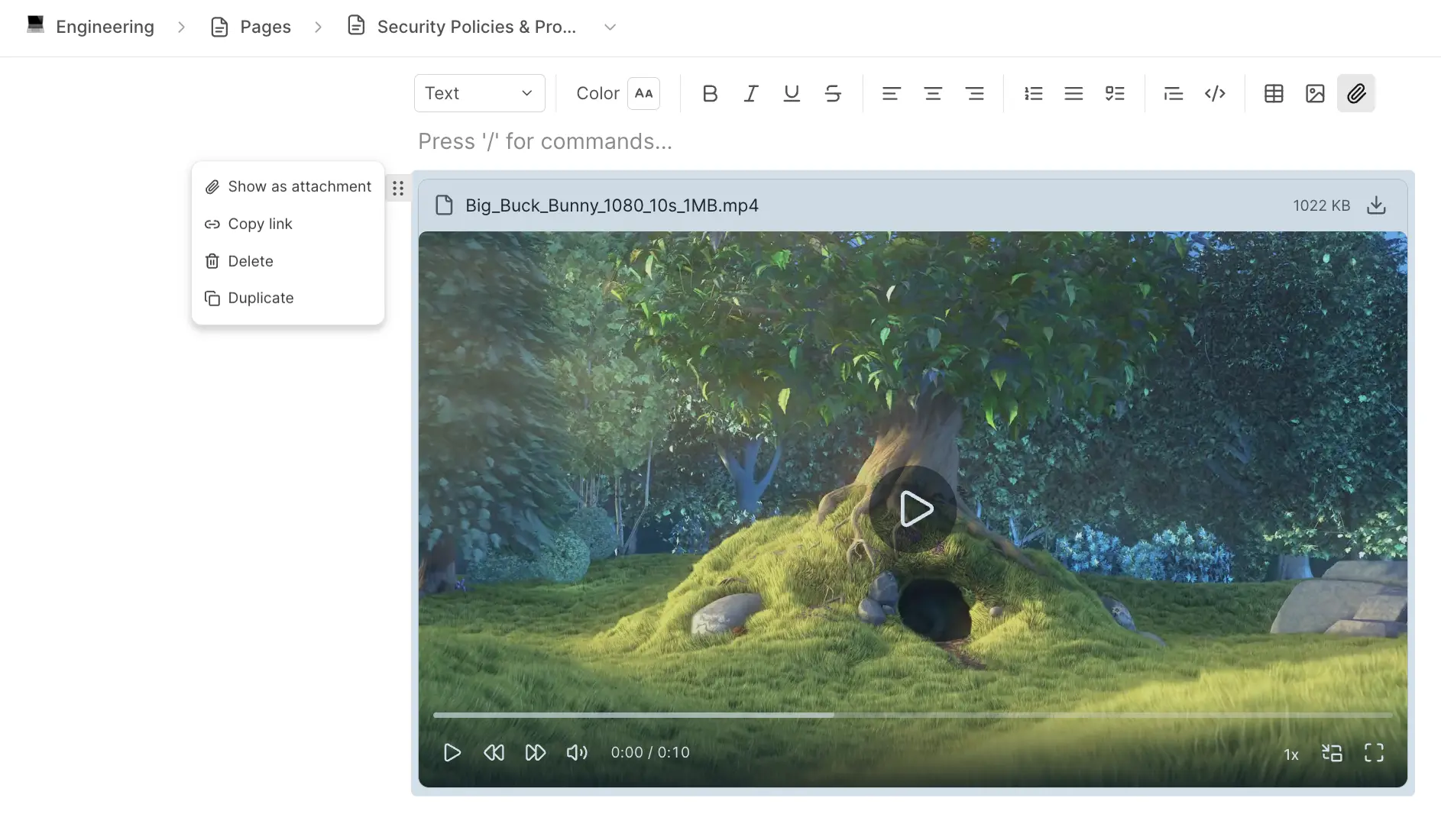
When you upload video files as attachments, you can display them with inline playback controls. Just hover over the block and click the ⋮⋮ icon that appears. Select Show preview to convert the file link into an embedded video player. This works for all supported video formats.
Columns Pro
Organize content side-by-side using multi-column layouts. Columns help you create visually structured pages for comparisons, parallel information, or more efficient use of horizontal space.
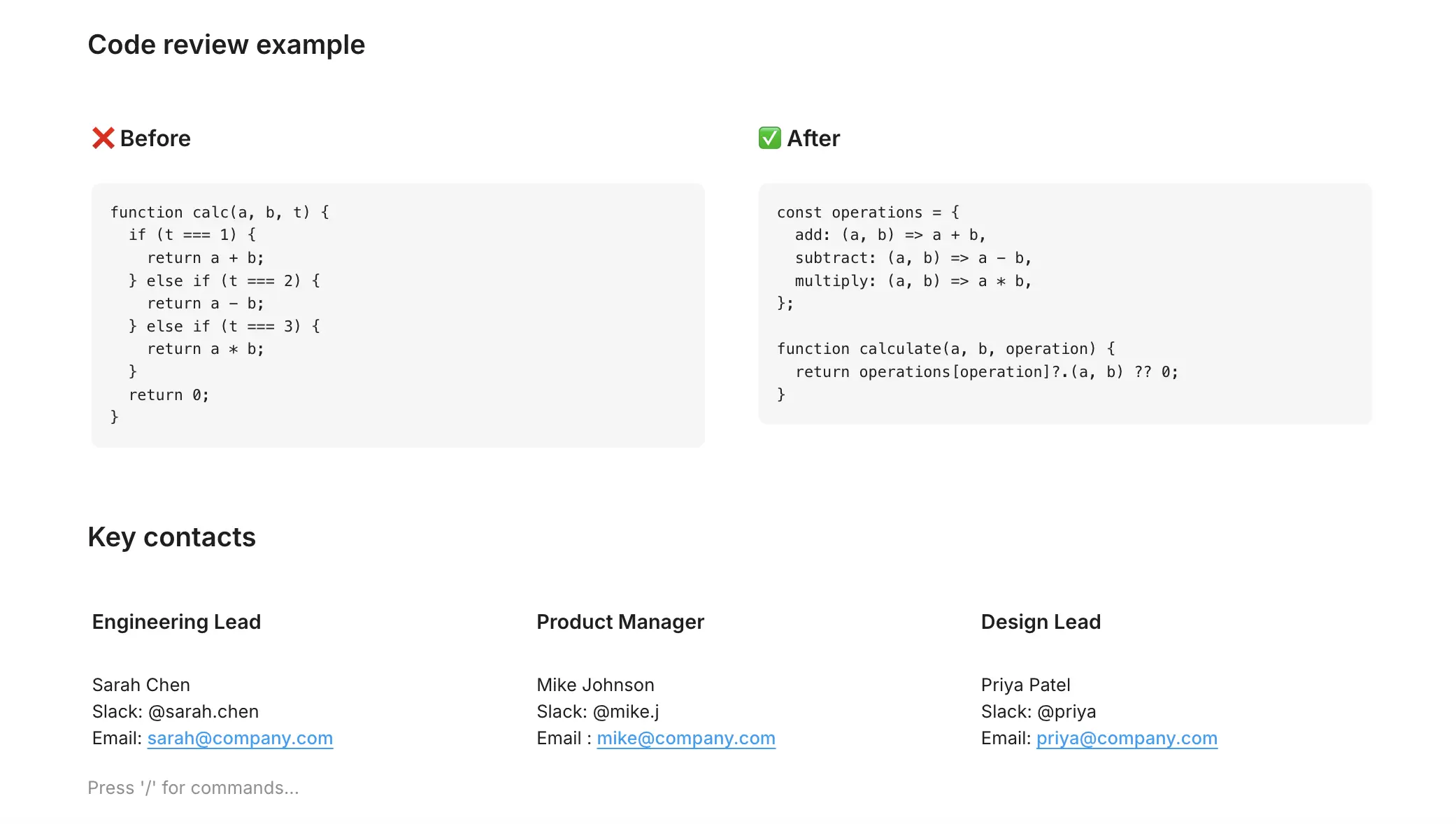
Use the slash command to insert the layout you need:
/2 Columns/3 Columns/4 Columns
Each column appears with an "Add content" placeholder where you can add any block type - text, lists, code, images, and more.
Video Pro
Embeds video content directly into your pages for rich multimedia documentation.
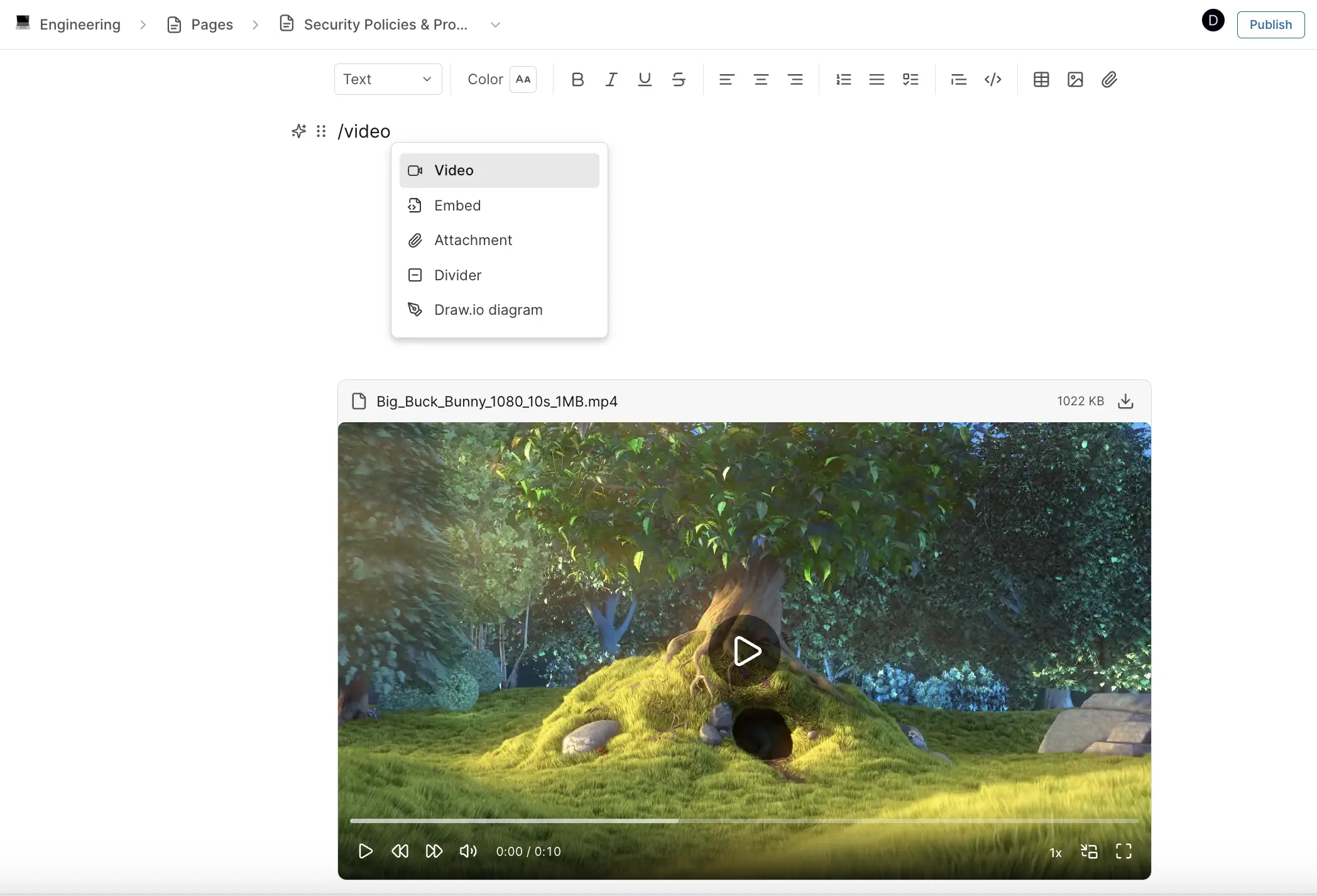
Type /video to insert a video block, then upload a video file. The video appears inline with playback controls, allowing viewers to watch without leaving the page. Supported video formats include MP4, MPEG, OGG Video, WebM, QuickTime, AVI, and WMV.
Show as attachment
If you have a video displayed with inline preview and want to convert it to a simple file link, hover over the video block and select Show as attachment from the actions menu. This collapses the video player into a compact attachment link.
Math equations Business
Add mathematical expressions and formulas to your Pages using LaTeX syntax. Whether you need to document complex calculations, display statistical formulas, or include scientific notations, Plane supports both inline and block-style mathematical equations. This is perfect for technical documentation, engineering specs, data analysis reports, and any content requiring precise mathematical notation.
Block equation
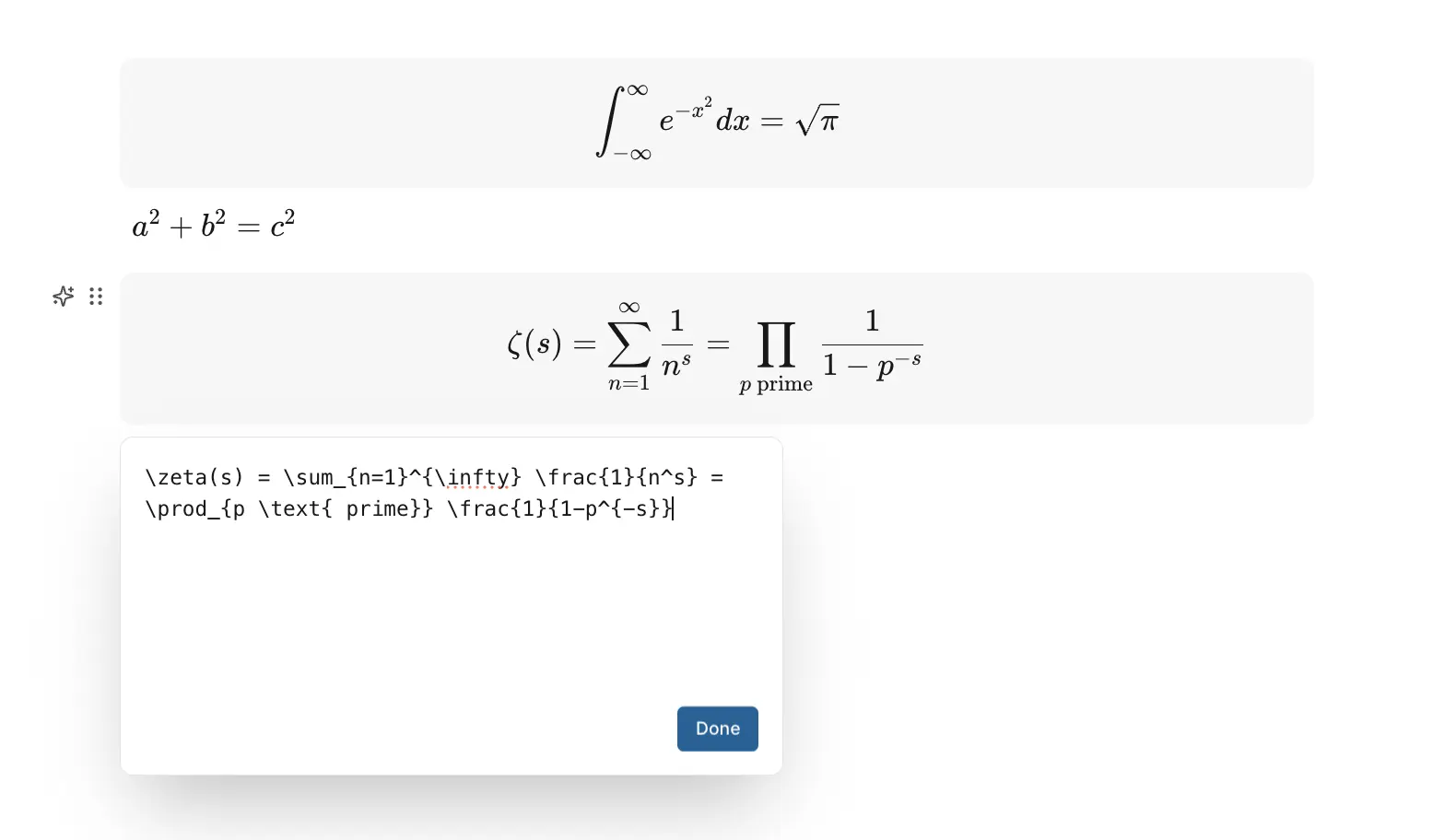
Creates standalone mathematical expressions using LaTeX syntax. Block equations are displayed on their own line with centered formatting, perfect for formulas, theorems, and complex mathematical statements that need emphasis.
Use the /blockequation slash command:
\lim_{x \to \infty} \frac{1}{x} = 0Or use double dollar syntax:
$$ \int_a^b f(x)\,dx = F(b) - F(a) $$Inline equation
Embeds mathematical expressions within regular text flow using LaTeX syntax. Inline equations maintain the same text baseline, allowing you to seamlessly integrate mathematical notation into sentences and paragraphs.
Use the /inlineequation slash command:
\bar{x} = \frac{1}{n}\sum_{i=1}^{n} x_iOr use single dollar syntax:
$ a^2 + b^2 = c^2 $Both equation types support full LaTeX rendering with built-in validation and error handling for invalid mathematical expressions.
Draw.io diagrams Business
Prerequisites
Before you can add Draw.io diagrams to Pages or Wiki, you need to connect the Draw.io integration from Workspace Settings.
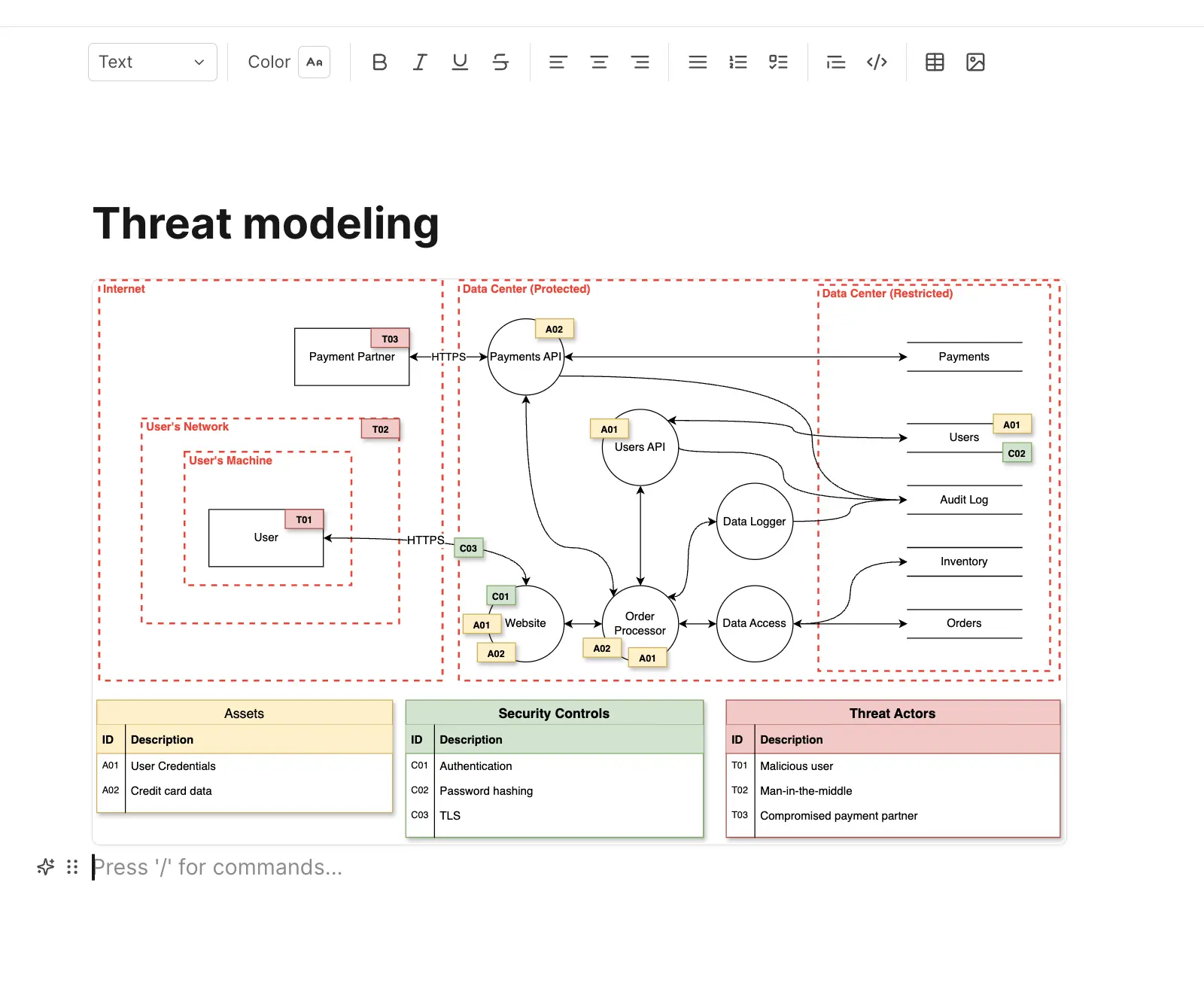
Create and manage interactive diagrams and whiteboards directly within your Pages using the integrated Draw.io editor. Whether you need professional flowcharts, system architecture diagrams, or freehand sketches for brainstorming, the diagram feature provides powerful visual documentation capabilities without leaving Plane.
Diagram
Create professional diagrams, flowcharts, and visual documentation using the full Draw.io editor with comprehensive shape libraries. Perfect for technical documentation, process flows, system architecture, network diagrams, and organizational charts. Use the /diagram or /drawio-diagram slash command to insert a diagram block. Click the placeholder to launch the Draw.io editor.
Board
Create whiteboards with freehand drawing and sketching capabilities using a simplified interface. Ideal for brainstorming sessions, quick mockups, concept visualization, and collaborative ideation. Use the /board or /drawio-board slash command to insert a whiteboard block. Click the placeholder that says "Click to start editing whiteboard" to launch the board interface.
Both modes feature a consistent toolbar with Save and Exit buttons, making it easy to preserve your work and return to your Page. All diagrams are fully interactive—simply click any saved diagram to edit it again.
Callout
Creates visually distinct sections with customizable icons and colors for highlighting warnings, tips , and calls-to-action.
AI block Business
Generate or transform content directly within your pages using AI. The AI Block lets you draft new content, summarize existing text, or run custom prompts without leaving the editor.
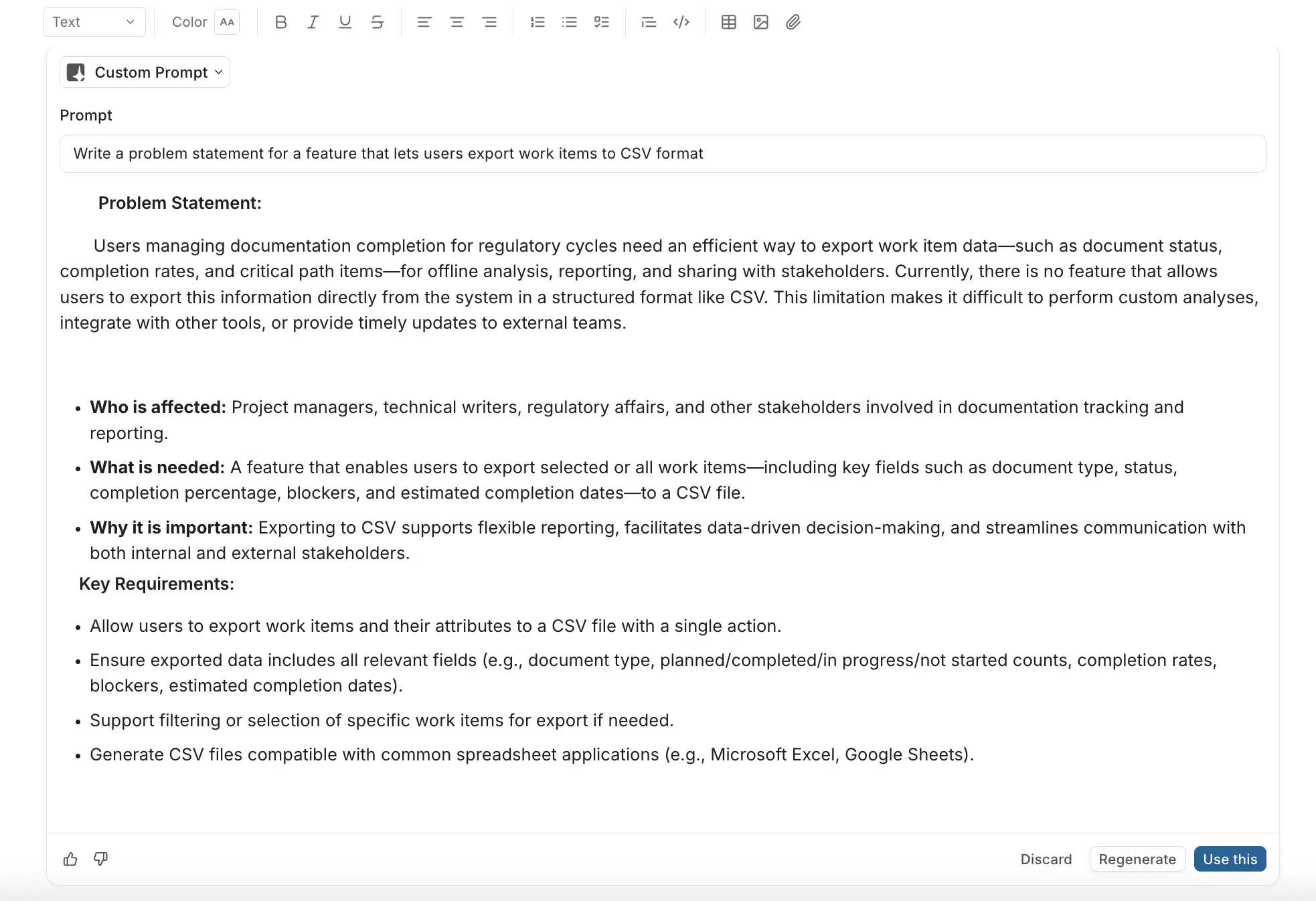
Type /ai to insert an AI Block. The block appears with a prompt input area and a dropdown to select the action type.
Action types
Summarize page
Generates a concise summary of your page content. Useful for creating executive summaries, TL;DRs, or quick overviews of longer documents.
Custom prompt
Write your own instructions to generate or transform content. Use this for drafting sections, rewriting text, structuring notes, expanding ideas, or any other AI-assisted writing task.
Work item Pro
References work items directly in the editor to track details and progress.
Divider
Adds a horizontal line to separate content sections visually.
Emoji
Add emojis to your content across all Plane editors. Type /emoji to open the picker or use : and start typing for suggestions like :smile:. Choose from standard Unicode emojis and GitHub's extended collection.
Date block Enterprise Grid
The date block inserts an inline date picker anywhere in a page. It renders as a small pill showing a formatted date and can be clicked to open a calendar and change the selection.
Insert a date block
Type /date in the editor to open the slash command menu and select Date. You can also search for it by typing /calendar, /deadline, or /due.
The block is inserted at the cursor position with no date selected.
Pick a date
Click the date pill to open a calendar popover. Select any date. The popover closes and the pill updates to show the selected date formatted as Jan 15, 2025.
Click the pill again at any time to change the date.
In read-only pages
The date renders as plain formatted text. It cannot be clicked or changed.
Status block Enterprise Grid
The status block inserts an inline colored label anywhere in a page. You define the text and choose from six colors. Use it to mark sections of a page with a state, flag, or category without creating a separate work item.
Insert a status block
Type /status in the editor and select Status. You can also search for it by typing /label, /badge, or /tag.
The block is inserted with the default text "STATUS" and a gray background.
Edit the label
Click the status badge to open a popover with a text field and a color picker.
Type your label text in the field. Changes appear on the badge as you type.
Select a color from the six options: Gray, Emerald, Crimson, Yellow, Indigo, Purple.
Press Enter or click outside the popover to close it and save.
In read-only pages
The status badge renders with its color and text preserved. It cannot be clicked or edited.